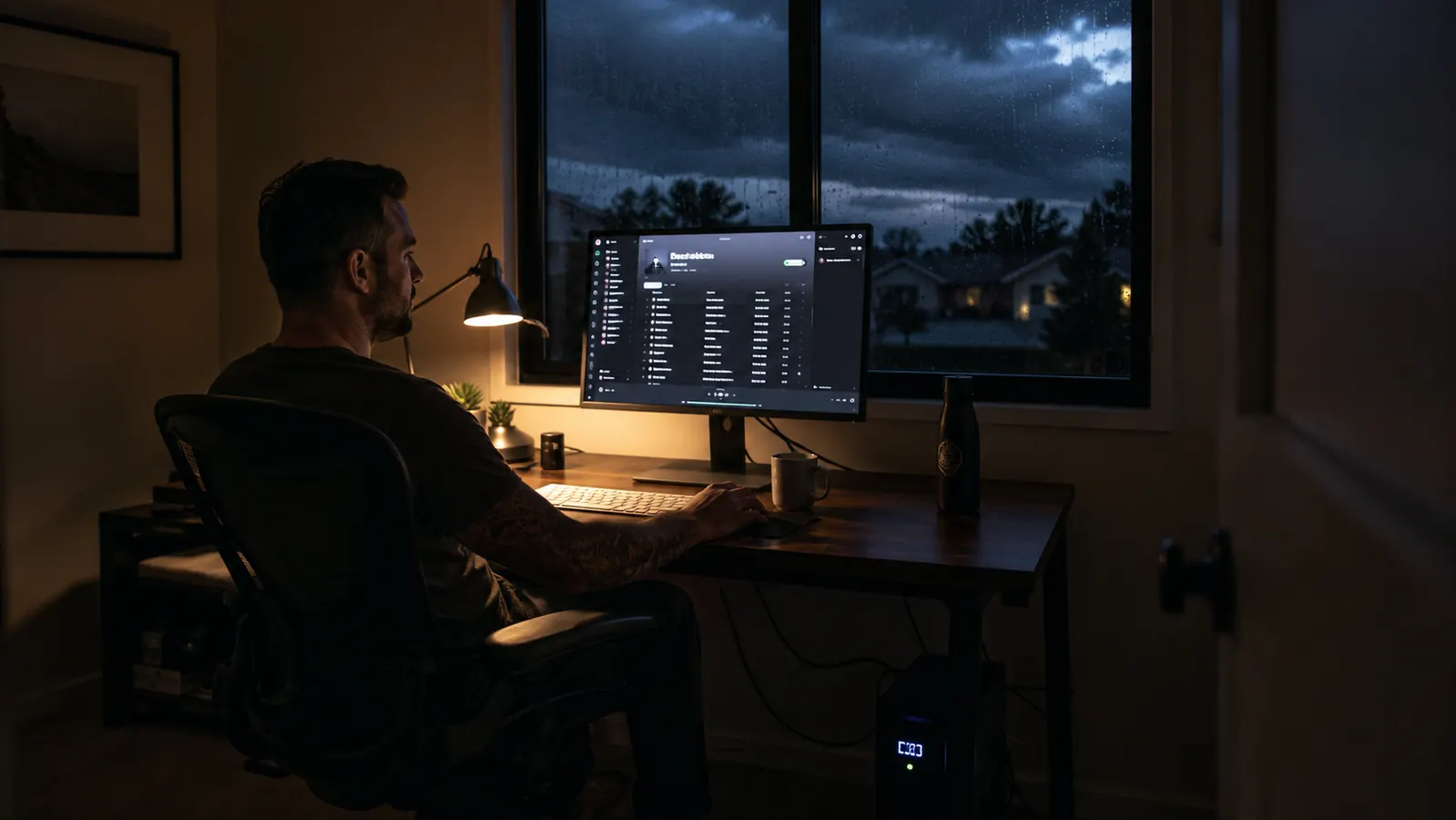
The first time I lost power mid-invoice, I lost forty minutes of work and had to redo a spreadsheet from memory. That was three years ago, before I put an APC BE600M1 under my desk. Since then I have ridden out probably a dozen outages, from a five-second blip to a two-hour storm-season blackout, without losing a single file.
A mini UPS, short for uninterruptible power supply, is not complicated. It is a battery in a box that sits between the wall outlet and your gear. When the power cuts, the battery takes over instantly, no gap, no reboot, just enough runtime to save your work and shut things down properly. This guide walks through exactly how I set mine up and how I actually use it when the lights go out, including the parts that don't show up on the box.
If you work from home and your income depends on staying online during a storm, or you've ever watched a blue screen swallow an hour of unsaved work, this is worth the twenty minutes it takes to set up right. Most people buy a UPS, plug it in once, and never think about it again until the day it matters, and that's exactly the day the small setup mistakes show up.
Don't wait for the next outage to find out your surge protector isn't enough
A surge protector stops a spike. It does nothing when the power actually drops. The APC BE600M1 is the piece that bridges the gap, long enough to save your work and shut down clean.
Amazon Check Today's Price on Amazon →Step 1: Figure out what actually needs battery backup
Not everything on your desk needs to ride the battery. A UPS has a limited number of battery-backed outlets, on the BE600M1 it is six, plus surge-only outlets for stuff that doesn't need power during an outage. I put my modem, router, and desktop tower on battery power. My desk lamp and phone charger go on the surge-only side, because losing light for a few seconds while I find a flashlight is annoying, not catastrophic.
The math matters here too. The BE600M1 is rated for 600VA, about 330 watts. My setup, a mid-tower PC, one monitor, a cable modem, and a router, pulls somewhere around 140 to 160 watts under normal use. That leaves headroom, which is exactly what you want. If you try to run a second monitor, a printer, and a space heater off the same unit, you will find out fast that the runtime drops to almost nothing.
Before you plug anything in, walk your desk and make a short list, on paper if it helps. Priority one is whatever lets you save work and stay online long enough to know if the outage is a five-minute blip or a real event. For most home offices that is the router, the modem, and the computer. Everything else, the second monitor, the printer, the desk fan, can wait, and honestly should wait, because every extra device you load onto the battery outlets is runtime you're taking away from the stuff that actually matters.
I also think about what happens if the outage runs long. My cordless phone base station and my laptop charger both got added to the list after a six-hour outage two winters ago left me unable to make a client call from a dead cell phone with no way to charge it. Small things, but they're the ones you don't think about until you need them.
Step 2: Place the unit where you can actually hear and see it
I made the mistake early on of tucking the UPS in the very back corner under my desk, behind a tangle of cables, where I couldn't see the display or hear the alarm clearly. When the power dropped during a call, I didn't notice the beeping until I was three minutes into battery time, and I'd already lost some of my runway.
Now mine sits on the floor to the left of my desk, out of the way but not buried, with a clear line of sight to the top of the unit if I lean over. The BE600M1 has a small LCD-style status readout and an audible alarm that chirps when it switches to battery. You want to be able to catch that alarm from your chair, not from across the room. If your office is loud, a fan running, a dog barking, a second monitor with speakers, consider that the beep might not cut through, and plan to glance at the unit periodically during storms.
This matters more than it sounds like it should. A UPS that switches to battery silently and unnoticed is just a battery slowly draining while you keep working normally, unaware that the clock has already started. I've talked to people who assumed their UPS would somehow warn them more aggressively, flash a light, send a phone alert, and it doesn't, not without the software step in Step 4. The alarm is the whole warning system unless you set up more.
Step 3: Plug in, run the initial charge, and label your outlets
Out of the box, the battery is not fully charged. APC recommends letting it charge for at least 16 hours before you rely on it for real backup time, and I'd add: don't test it on day one expecting full runtime, you'll get a number that looks worse than what you'll actually have once the battery settles in over the first week of normal charge cycles.
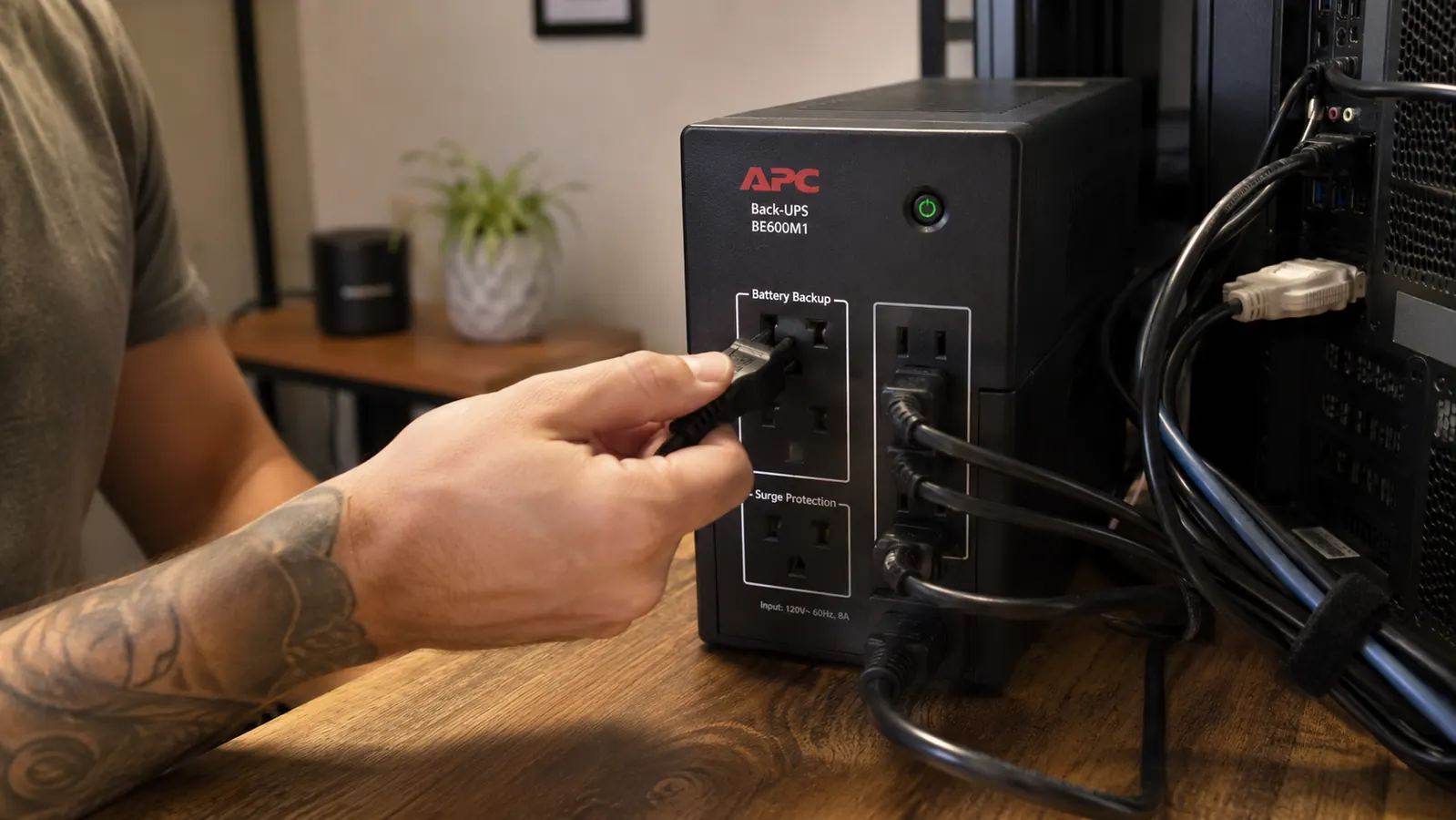
Plug the UPS itself into the wall, then plug your priority devices into the battery-backup outlets, they're clearly marked and usually a different color on the back panel. I keep a strip of painter's tape on mine with each device labeled, router, modem, tower, because six outlets start to look identical once the cables are all routed and zip-tied. It sounds like overkill until you're troubleshooting at 11pm during a storm and can't remember which outlet is which.
Plug your non-critical stuff, the desk lamp, a phone charger, a small fan, into the surge-only outlets. They still get surge protection, they just don't draw from the battery when power drops. This split is the whole point of the unit, and skipping it, plugging everything into battery outlets because it's easier, is the single most common way people burn through their runtime in half the time they expected.
Give the unit a spot where the alarm actually reaches you, label the outlets while you still remember which cable goes where, and let the battery break in properly before you count on it. Those three small habits do more for your outage-day confidence than any spec on the box.
Step 4: Install the monitoring software and set your shutdown preferences
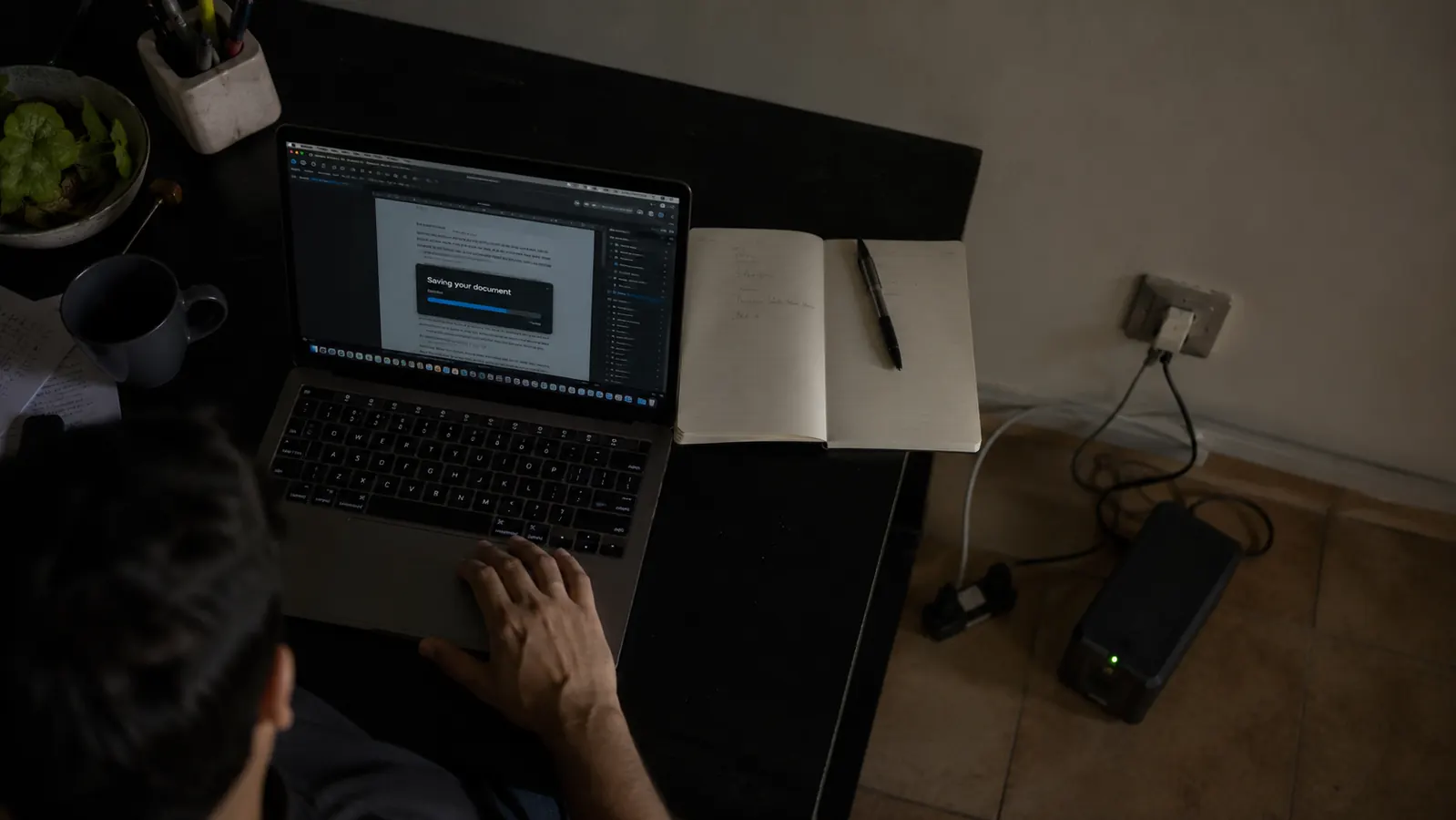
This is the step most people skip, and it's the one that actually saves your work. APC's PowerChute software connects to the UPS over USB and can automatically save open files and shut your computer down gracefully if the battery gets low and you're not at your desk. I've had it trigger twice while I was away from my desk during a storm, once while walking my dog, and both times I came back to a computer that had shut down cleanly instead of one that died mid-write.
Set the shutdown threshold with some buffer. I run mine to trigger a shutdown when the battery hits 20 percent remaining, not 5 percent, because I'd rather lose a few extra minutes of runtime than cut it too close and have the computer die before the shutdown sequence finishes. The software also lets you log events, which is useful if you ever want to see exactly how many outages you've weathered and how long each one ran, data that's genuinely handy if you're deciding whether to upgrade to a bigger unit down the line.
Installation takes about ten minutes, plug in the USB cable that comes in the box, download PowerChute from APC's site, and walk through the setup wizard once. Set it and you genuinely don't have to think about it again until the next outage does the thinking for you.
Step 5: Know your real runtime, and build a habit around it
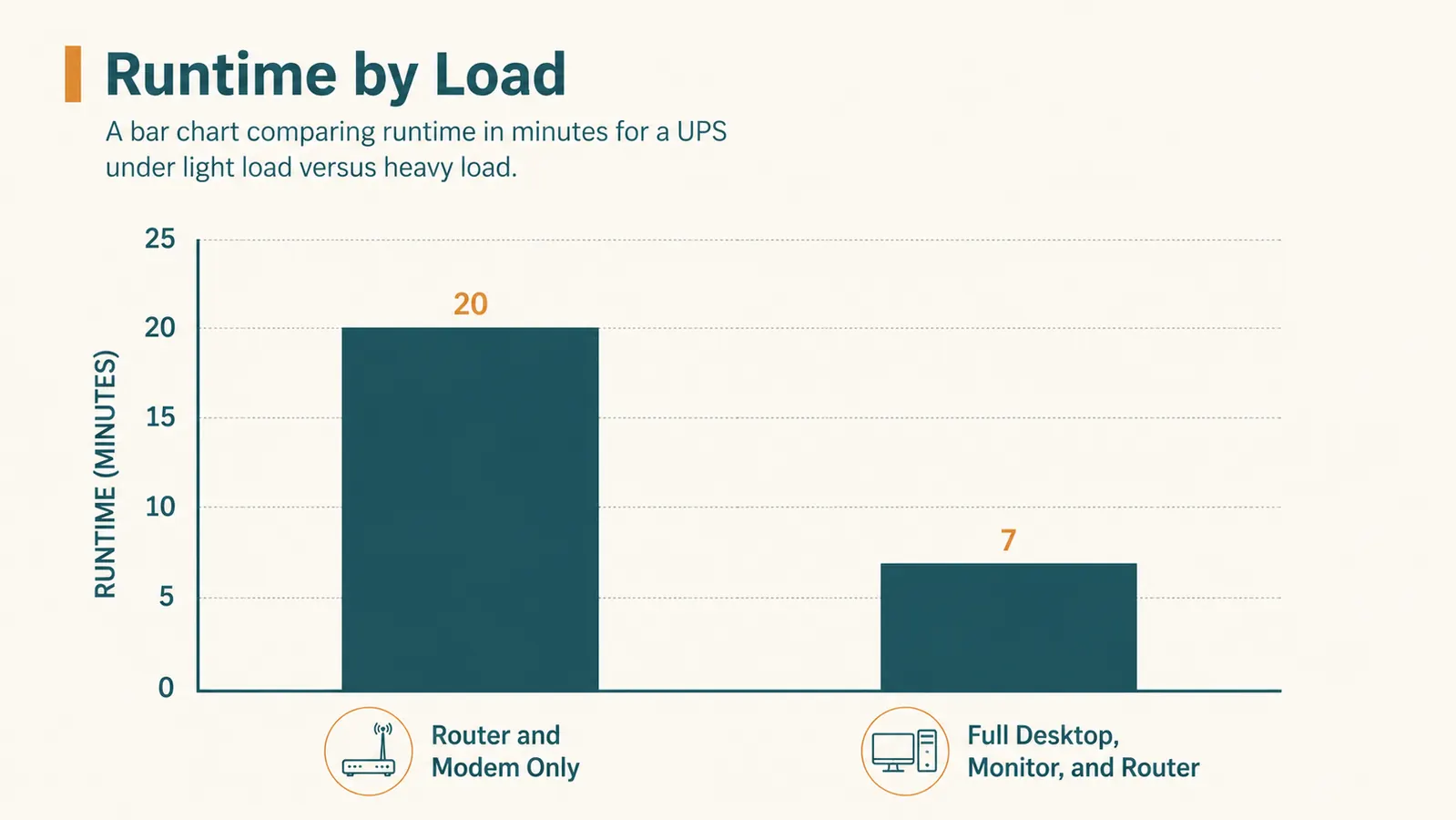
This is the part the spec sheet won't tell you clearly. APC lists a runtime for a specific load, but your actual number depends entirely on what you've got plugged in. In my testing, running just the router and modem on battery gives me close to 20 minutes, plenty of time to know if internet's really down. Adding the full desktop tower and monitor into the mix drops that to roughly 7 to 8 minutes under real load, enough to save a document and shut down, not enough to keep working through a long outage.
The habit I've built is simple. The second I hear that alarm chirp, I save whatever I'm working on immediately, no exceptions, then I glance at the display to see estimated runtime remaining. If it's a quick blip, power usually comes back within a minute or two and the UPS just resumes normal pass-through. If it's a real outage, I use those first two minutes to save files, close anything unsaved, and either keep working on battery for router and modem only, or shut the tower down and switch to my phone's hotspot if I need to stay reachable.
Over time you'll get a feel for your own numbers, which honestly matter more than the manufacturer's spec, since your load is never quite the manufacturer's test load. Write your real numbers down somewhere, on that same strip of tape works fine, so you're not guessing under pressure the next time the lights flicker.
A UPS doesn't promise you'll keep working through a blackout. It promises you won't lose the work you already did.
What Else Helps
A mini UPS handles the electrical side, but a couple of habits make it work even better. First, get in the habit of saving your work every few minutes regardless, most software auto-saves now but not all of it, and a UPS buys you time, not immunity. Second, if outages are frequent in your area, consider a second smaller UPS just for your modem and router alone, since staying online during a neighborhood-wide outage sometimes means the difference between working through it on a hotspot and being fully offline while your battery drains on a dead tower.
Third, replace the internal battery every 3 to 5 years, APC sells replacement battery cartridges for the BE600M1 and it's a five-minute swap, not a full unit replacement. A UPS running on a dead battery is just an expensive surge protector that beeps at you, and the battery does degrade quietly in the background, you won't know until an outage hits and the runtime you were counting on isn't there. Mark a reminder on your calendar the same way you'd remember to change a smoke detector battery.
Finally, do a real test once or twice a year. Unplug the UPS from the wall for two minutes while it's running your actual gear, not just a lamp, and watch what happens. It's the only way to know your setup will actually hold when a real storm rolls through instead of finding out the hard way during a client deadline.
The next outage is coming. The only question is whether your work survives it
Set it up once, following the steps above, and let it do the one job that matters when the lights go out.
Amazon Check Today's Price on Amazon →